
To delete your Shopify store, go to Settings → Plan in your Shopify admin, click Cancel trial (if you’re on a trial) or Deactivate store (if you’re on a paid plan), follow the confirmation steps, and your store will be closed. Before you do that, read the checklist below — skipping it is how people end up with unexpected charges or lost data.
Before you delete: 4 things to do first
Shopify’s own “Deactivate trial” modal flags two of these — but they’re easy to miss in the moment. Do them now, before you click anything.
1. Export your store data
Once your store is deactivated your admin access becomes restricted. Export your orders, products, and customer list as CSV files first: go to Orders → Export, Products → Export, and Customers → Export. Keep these files somewhere safe — you’ll need them if you ever migrate to another platform or need order records for tax purposes.
2. Cancel third-party apps
This is the most common mistake. Closing your Shopify store does not automatically cancel apps that bill outside of Shopify’s system. Check every app you’ve installed and cancel their subscriptions directly through each app’s own billing settings or the app provider’s website. If you don’t, some will keep charging you after the store is gone.
3. Handle your domain
If your custom domain was purchased through Shopify, transfer it to an external registrar (like Namecheap or Google Domains) before deactivating — otherwise you risk losing it permanently. If you bought it through a third-party provider, disconnect it from your Shopify store first via Settings → Domains.
4. Clear any outstanding balance
Shopify will block you from deactivating if you have an unpaid balance. Check Settings → Billing and settle any outstanding charges before you try to close the store.
How to delete your Shopify store (step by step)
These steps cover both trial stores and paid-plan stores — the process is nearly identical, just with slightly different button labels.
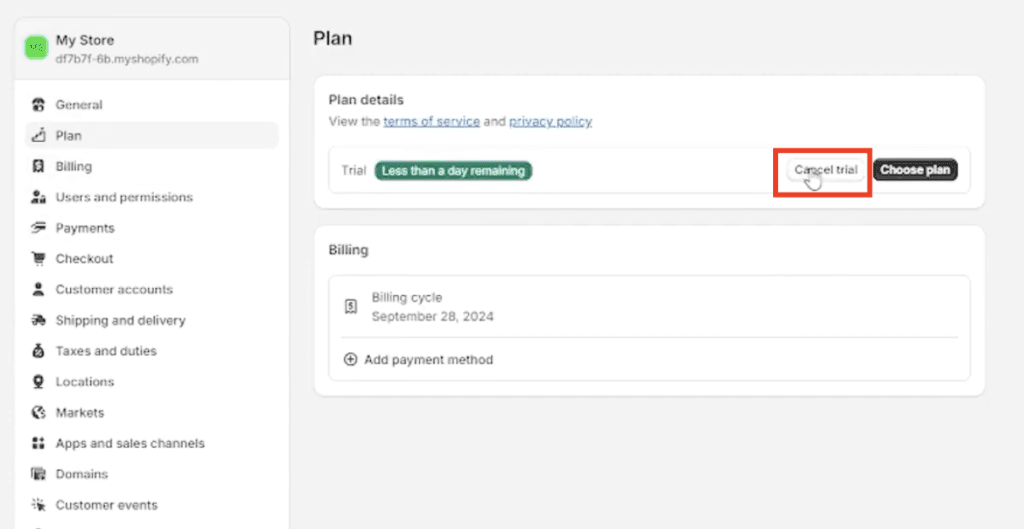
- Log in to your Shopify admin at yourstore.myshopify.com/admin.
- Go to Settings — click the Settings icon in the bottom-left corner of the dashboard.
- Select Plan from the settings menu. You’ll see your current plan details and billing information.
- Click “Cancel trial” (if you’re on a free trial) or “Deactivate store” (if you’re on a paid plan). Both buttons are on this Plan page.
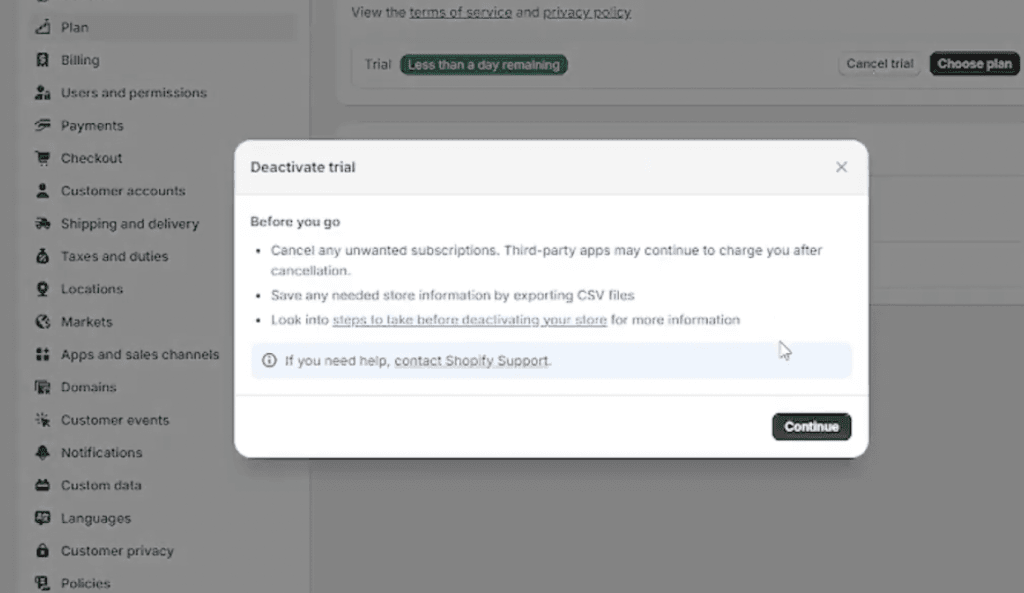
- Review the “Before you go” modal. Shopify shows a checklist warning you about app subscriptions and data export (exactly what’s covered above). Click Continue.
- Select a reason for leaving from the dropdown. This is required but won’t affect the outcome — choose whichever option fits best.
- Enter your password to confirm ownership, then click Deactivate now (paid plan) or confirm the trial cancellation.
Your store is now deactivated. Customers can no longer access your storefront and your admin access becomes limited.
Wait — should you pause instead of delete?
If you’re not 100% sure you’re done with your store, the Pause and Build plan is worth considering before you close permanently. It costs $9/month and keeps your store in a low-activity state: your storefront stays live, customers can browse, but checkout is disabled so no new orders come in. You keep full admin access and can keep editing your store, and your SEO and domain stay intact.
Pausing makes sense if you’re taking a break, waiting on inventory, rebranding, or not yet sure about switching platforms. Deleting makes sense if you’re certain you’re done and want to stop all charges. Note that the Pause and Build plan is only available if you’re already on a paid Shopify plan — it’s not available during the free trial.
Starting a new store?
Get the Shopify free trial and start fresh — 3 days free, then $1/month for 3 months.
What happens after you deactivate
A few things happen immediately when you close your store, and a few more happen in the background that are worth knowing:
- Your storefront goes offline immediately. Customers who visit your URL will see a “this store is unavailable” message right away.
- Your store name and .myshopify.com URL are released. You cannot reclaim them, even if you open a new store. If the name matters to you, don’t delete.
- Shopify keeps your data for 2 years. You can log back in and reactivate by choosing a plan at any point within that window. After 2 years, the data is permanently deleted and the store cannot be recovered.
- All apps are automatically uninstalled — but app charges billed outside Shopify’s system may continue until you cancel them directly with each provider.
- Shopify Payments payouts continue until any pending payments clear, even after deactivation.
- Permanent data deletion is separate. If you want Shopify to erase your data before the 2-year mark, go to privacy.shopify.com and submit a data erasure request. You must deactivate the store first.
What I found going through this
After going through Shopify’s pages and articles for quite some time, I discovered that it’s impossible to fully and instantly delete your store. However, this process is the closest thing to actually deleting your Shopify store.
Common mistakes people make
These come up regularly and each one is avoidable if you know about it in advance.
- Not cancelling third-party apps. Closing your store does not stop external app subscriptions. Check every app and cancel at source.
- Losing the domain. Shopify-purchased domains are tied to your store. Transfer to an external registrar before you close, not after.
- Skipping the data export. Post-deactivation admin access is restricted. Export orders, customers, and products before you click anything.
- Expecting an immediate refund. Shopify does not refund unused subscription days when you close mid-cycle. You’re billed to the end of the current period.
- Closing instead of pausing. If there’s any chance you’ll want the store back, use the Pause and Build plan. Once the store name and URL are released you can’t get them back.
Frequently asked questions
Can I reopen my Shopify store after deleting it?
Yes, if you act within 2 years. Shopify keeps your store data for 2 years after deactivation, and you can reactivate by logging back in and choosing a plan. After 2 years, the data is deleted and the store cannot be recovered.
Does deleting a Shopify store stop all charges?
Deactivating stops Shopify’s own subscription charge, but third-party app charges do not stop automatically. You must cancel each app directly through its own billing settings before or after closing your store to avoid ongoing charges.
What is the difference between pausing and deleting a Shopify store?
Pausing (Pause and Build plan, $9/month) keeps your store online with checkout disabled — you can still edit your store and customers can browse. Deleting fully deactivates the store, removes customer access, and releases your store URL. Pausing is the better option if you plan to return.
Will I lose my domain if I delete my Shopify store?
If your domain was purchased through Shopify, transfer it to another registrar before deactivating or you risk losing it. If it was purchased through a third-party provider, disconnect it from your Shopify store via Settings → Domains before closing.
How long does Shopify keep my data after I close my store?
Shopify guarantees your store data for 2 years after deactivation. If you want it deleted sooner, you can request permanent data erasure via Shopify’s privacy controls at privacy.shopify.com.
Related next step
Browse more Shopify tutorials and guides, or check the best tools and deals if you’re moving to a new platform.