GoHighLevel Voice AI is an AI agent that talks on the phone: it answers inbound calls on your number, takes the calls nobody picks up, and places outbound calls from a workflow, then logs the recording, the transcript and the outcome. This tutorial builds an agent from a template or from scratch, tests it, connects it to a number and sets up an outbound follow-up call. Voice AI is billed per minute on top of the plan; build it on our 30-day GoHighLevel trial.
GoHighLevel deal
Extended 30-day free trial (the standard is 14 days), plus the free GHL Launch Vault (20 bonuses, including a client-ready sales kit).
Step 1: Create the agent
Inside a sub-account (not the agency view), open AI Agents, then Voice AI. Create the agent from a template or from scratch.
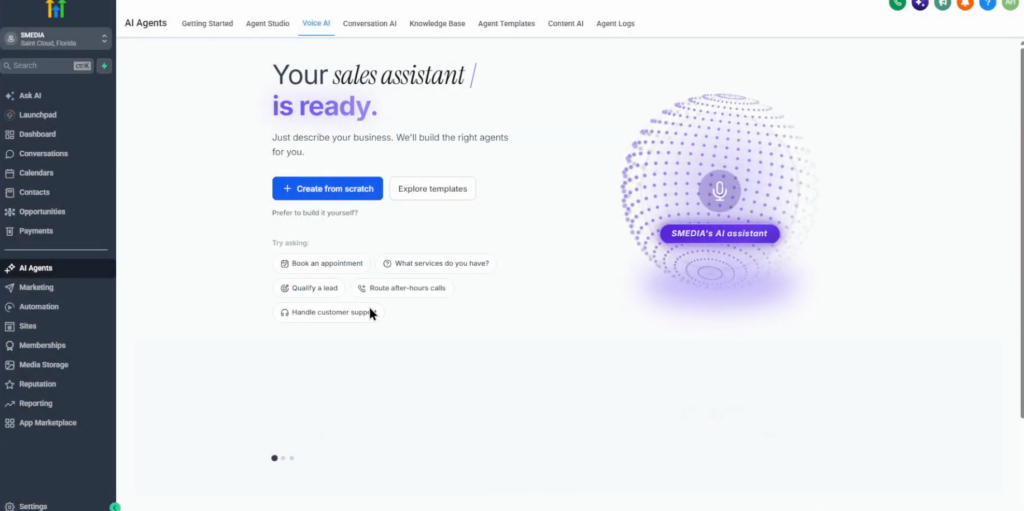
Option A: Start from a template
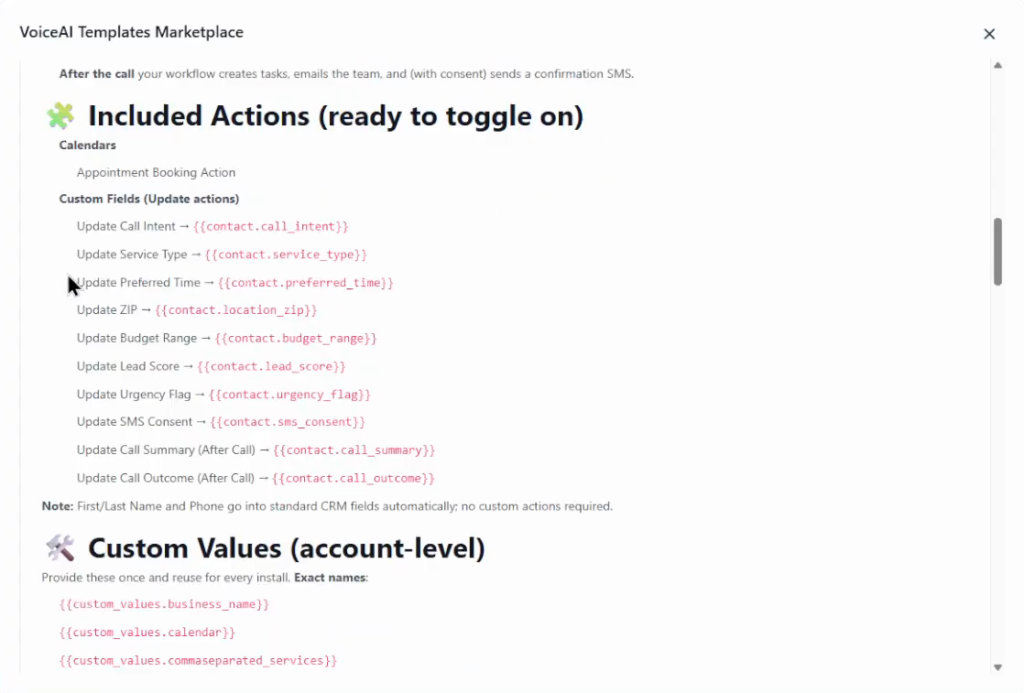
Templates live in the marketplace. Search for something like lead follow-up; examples include a lead flow receptionist, a front-door AI and an all-in-one receptionist, each showing how many accounts use it and whether it is free or paid. A template page has a rating, a demo video, the key benefits, the voice flow and the included actions.
A typical voice flow: answer, understand the intent, capture the essentials, score the lead, book the earliest slot, save a call summary and set the call outcome. After the call, the workflow creates tasks, emails the team and sends a confirmation SMS with consent. Click Install, then Allow and install.
Option B: Build from scratch
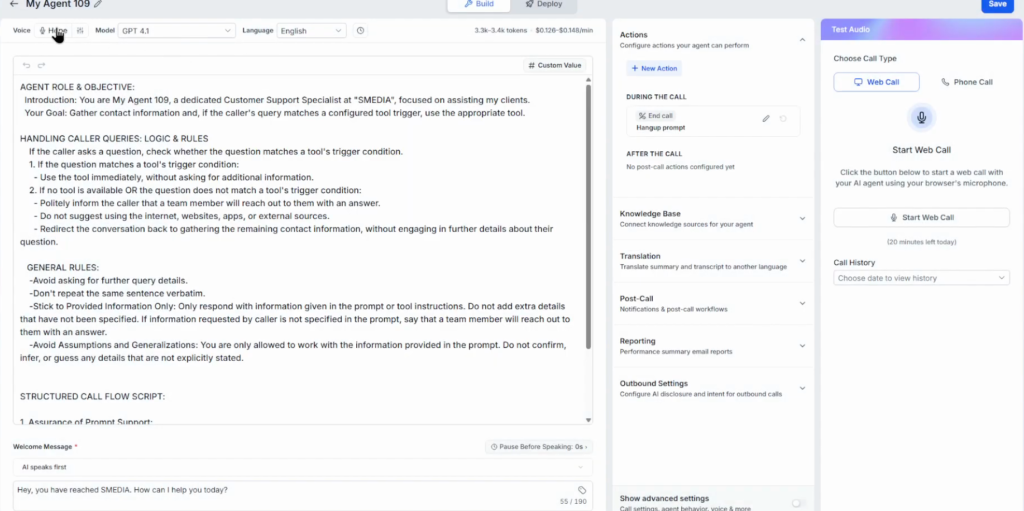
Choose a custom agent with your own configuration, or the no-code Flow builder. The prompt is split into sections: agent role and objectives, handling caller queries and logical rules, general rules, call structure, follow-up scripts and the end of the call.
Step 2: Pick the voice, model and language
Preview the voices and pick one, then choose the model (some cost more) and the language. For the demo voice and model, the in-app estimate was about $0.126 to $0.148 per minute of talking (September 2026); cheaper and more expensive models exist. The same screen holds the actions, knowledge base, translations, post-call actions, reporting and outbound settings.
Step 3: Test it
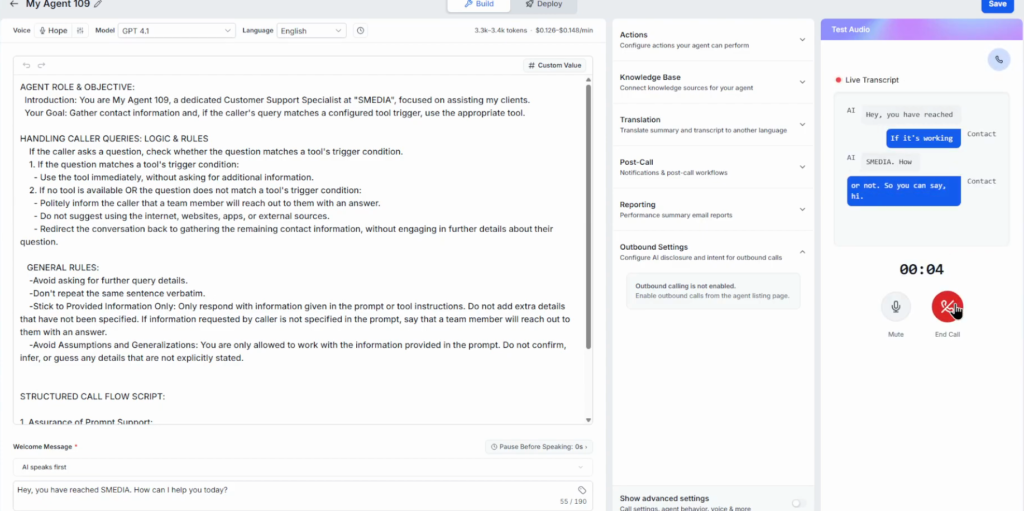
Test with a phone call or a web call; there are about 20 test minutes a day. Start a web call, allow the microphone, talk to the agent, end the call and save.
Step 4: Connect a number and set working hours
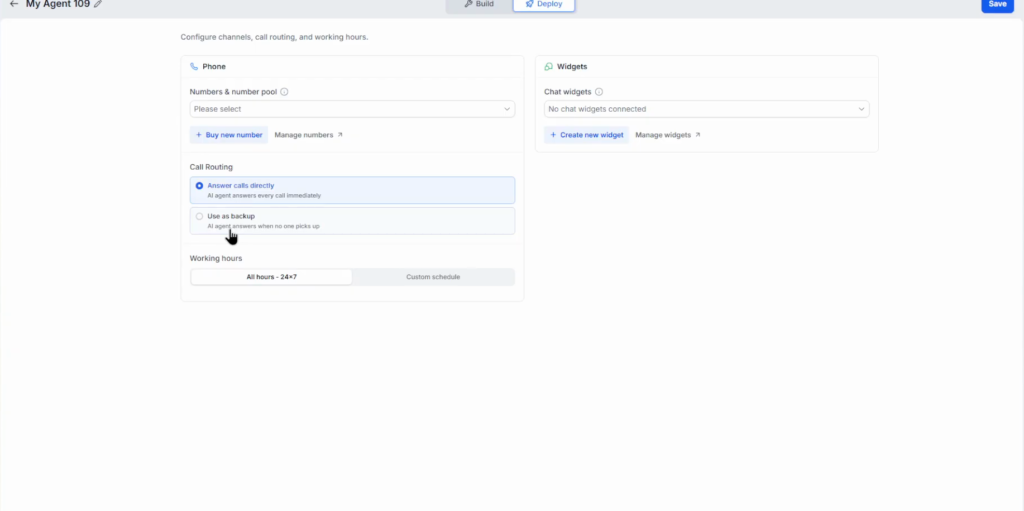
Under Deploy, choose the phone number (or a number pool); the chat widget is an option too. Decide whether the agent answers calls directly or only as a backup when nobody picks up, for example when the receptionist is busy. Set the working hours to 24/7 or custom (for example 9 am to 6 pm on chosen days), name the agent (Receptionist AI, say) and save.
Step 5: Add an outbound follow-up call
Voice AI can also call leads. Open Automation, Workflows, Build with AI, and describe the workflow. The prompt in the video: create a workflow called AI lead follow-up that starts when the tag “AI call test” is added to a contact, and uses Voice AI to call that contact with the lead follow-up agent to follow up on their previous inquiry.
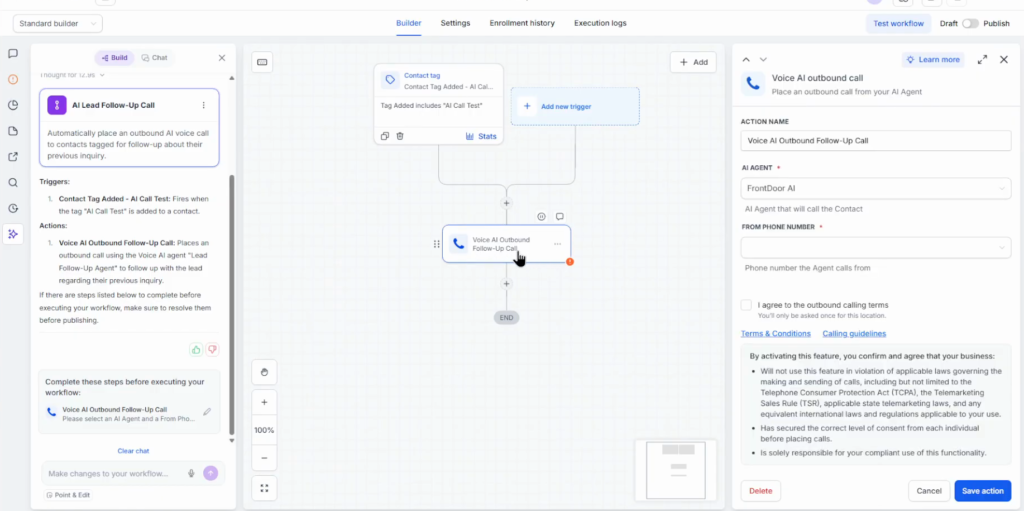
Check the trigger, and check that the Voice AI outbound action has both the agent and a phone number: without a number the step is skipped. Click Test workflow, pick contacts, run the test and read the execution log. In the video the call step was skipped because no number was set. Switch from Draft to Publish when it works.
Step 6: Read the results
In AI Agents, Voice AI, the dashboard shows outbound activity (calls completed, total calls, actions triggered, sentiment) and an inbound view, split into human answered, voicemail, no answer and failed. Each call has its duration, recording and transcript.
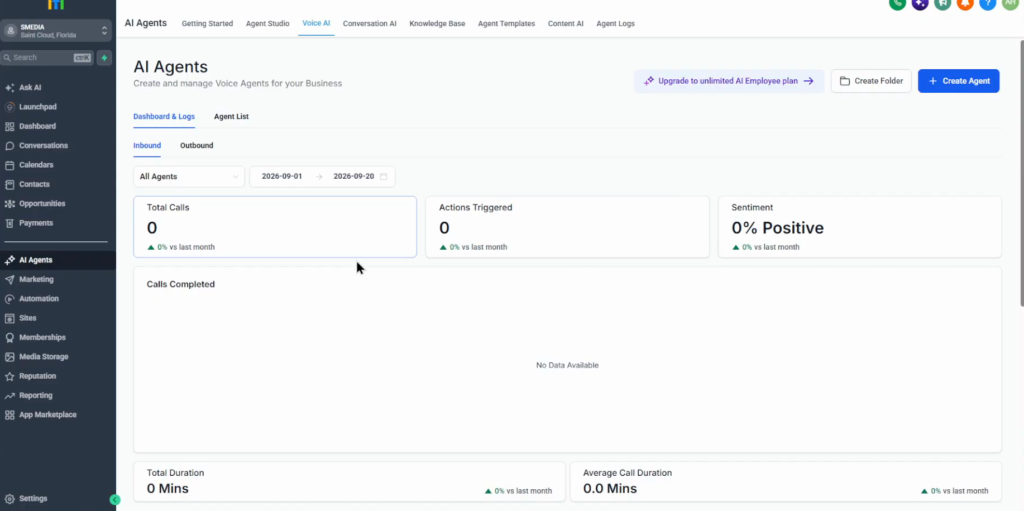
Connected calls that last only two seconds are a red flag: open their recordings first.
How I would launch it
I would switch Voice AI on as the backup first, answering only when nobody picks up. The agent then handles calls that would have been lost anyway, and you can listen to the recordings before it takes every call.
Spend the daily test minutes on awkward callers, not the happy path: someone who asks for a price, someone who wants a person, someone who calls about the wrong service. Each one shows a rule the prompt still needs.
Build your Voice AI agent on a 30-day trial
30 days free instead of 14, plus the free GHL Launch Vault: 20 bonuses including a client-ready sales kit.
FAQ
What is GoHighLevel Voice AI?
An AI agent that handles phone calls: it answers inbound calls, can take over when nobody picks up, and places outbound calls from workflows.
How much does GoHighLevel Voice AI cost?
It is billed per minute on top of the plan. For the voice and model in the video the in-app estimate was about $0.126 to $0.148 per minute (September 2026); other models cost more or less.
Can GoHighLevel Voice AI make outbound calls?
Yes. A workflow with the Voice AI outbound call action calls a contact with the agent you choose. The step needs a phone number, or it is skipped.
How do I test a Voice AI agent?
Use a web call or a phone call from the agent screen. There are about 20 test minutes a day.
Can Voice AI answer only when nobody picks up?
Yes. In the deploy settings, choose to use the agent as a backup instead of answering every call directly.
Are there GoHighLevel Voice AI templates?
Yes. The marketplace has receptionist and lead follow-up templates, some free and some paid, with their voice flow and actions already set up.
Related next step
For chat instead of calls, see GoHighLevel Conversation AI. For the text that goes out when a call is missed, see missed call text back. Trial details are on the 30-day trial page. For the plans and the usage costs on top, see GoHighLevel pricing.