To create an image with OpenArt’s AI image generator, open Tools > Image > Create Image, pick a model, write a detailed prompt, set the aspect ratio, resolution and number of images (up to 8), and click Generate. From the result you can upscale it, make variations, download it as a PNG or recreate it with an edited prompt. It takes about two minutes.
OpenArt deal
15% off with code TUTORIALSTACK, plus the free AI Prompt Vault (2,662 prompts + the AI Ad & UGC Course) with any paid plan.
Step 1: Open the image tools
In OpenArt, click Tools at the top and choose Image. You’ll see every image tool: Create Image, Image Variations, Edit Image, Expand Image, Image Upscale, Change Background, Multi View, Camera Angle Control and Face Swap. To generate from scratch, pick Create Image.
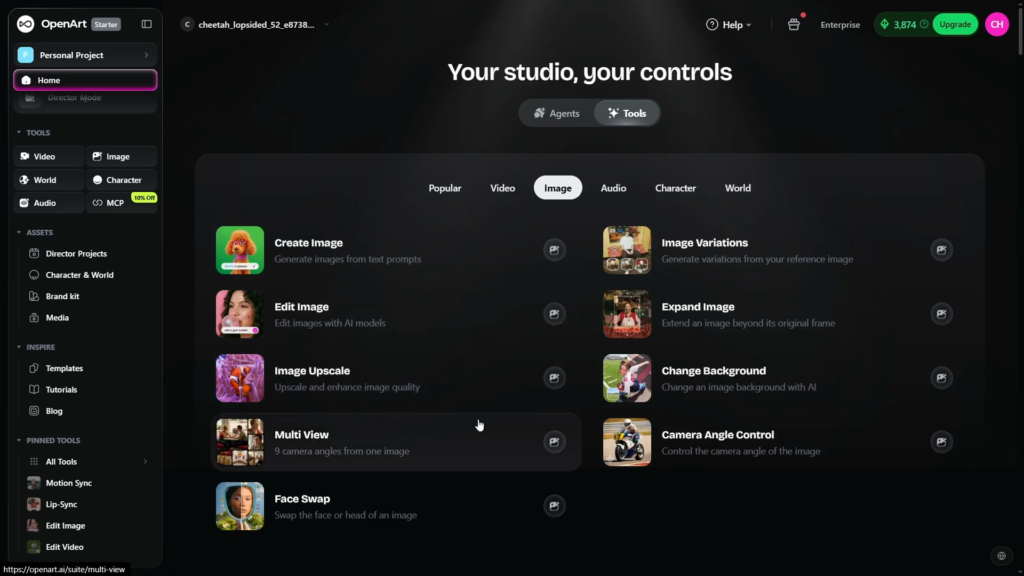
Step 2: Create Image or Image Variations
At the top of the panel you can switch between Create Image, which starts from a text prompt, and Image Variations, which starts from an image you upload, for example to make several versions of a product shot.
Step 3: Pick a model
OpenArt offers a long list of image models, including OpenAI’s GPT Image 2 and Google’s Nano Banana models. Each has its own look and credit cost, and there’s no single best one, so try a few on the same prompt and keep the one you like.
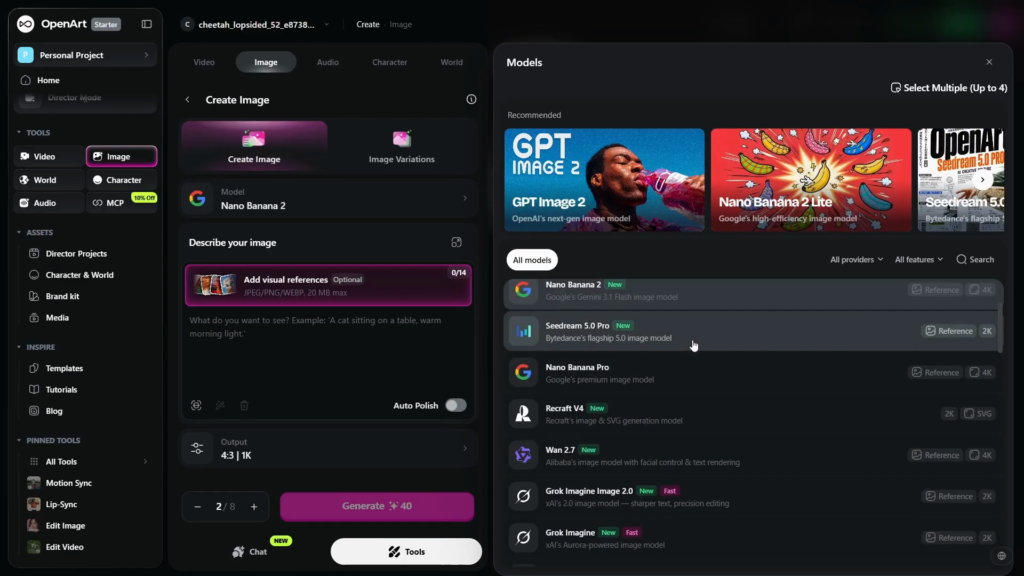
Step 4: Write a detailed prompt
The prompt does most of the work. “A volcano” gets you something generic; a detailed prompt gets you what you pictured. Describe the subject, the action, the setting, the lighting and the style. If you’re not sure how to write one, describe the image to ChatGPT or Gemini and ask for a detailed image prompt.
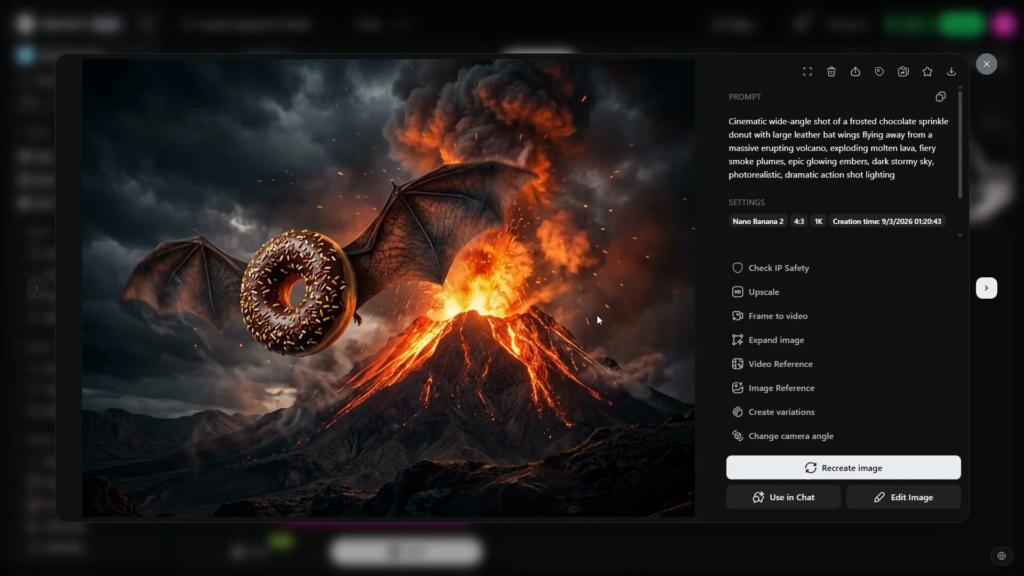
The prompt used in the video: “Cinematic wide-angle shot of a frosted chocolate sprinkle donut with large leather bat wings flying away from a massive erupting volcano, exploding molten lava, fiery smoke plumes, epic glowing embers, dark stormy sky, photorealistic, dramatic action shot lighting.”
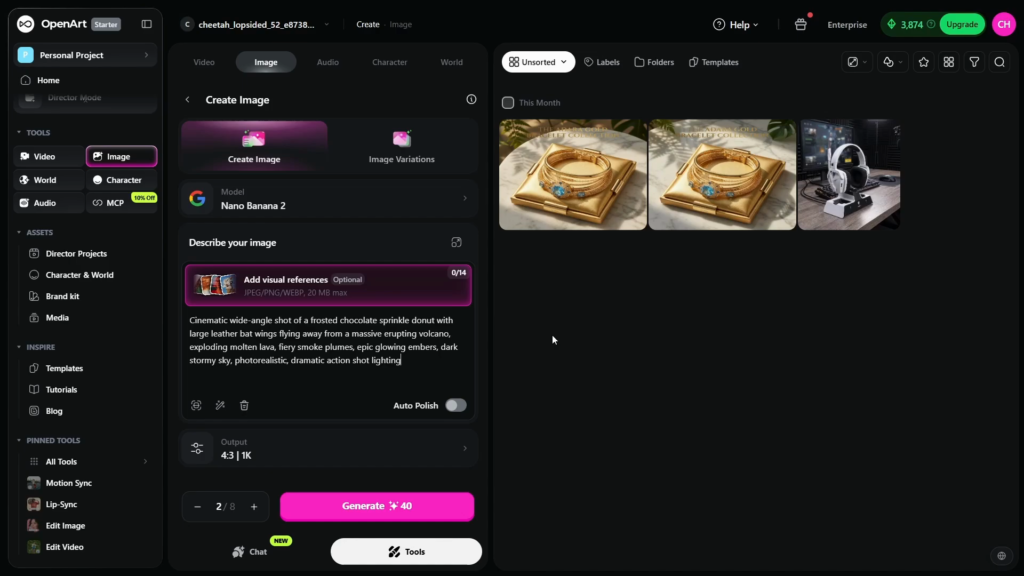
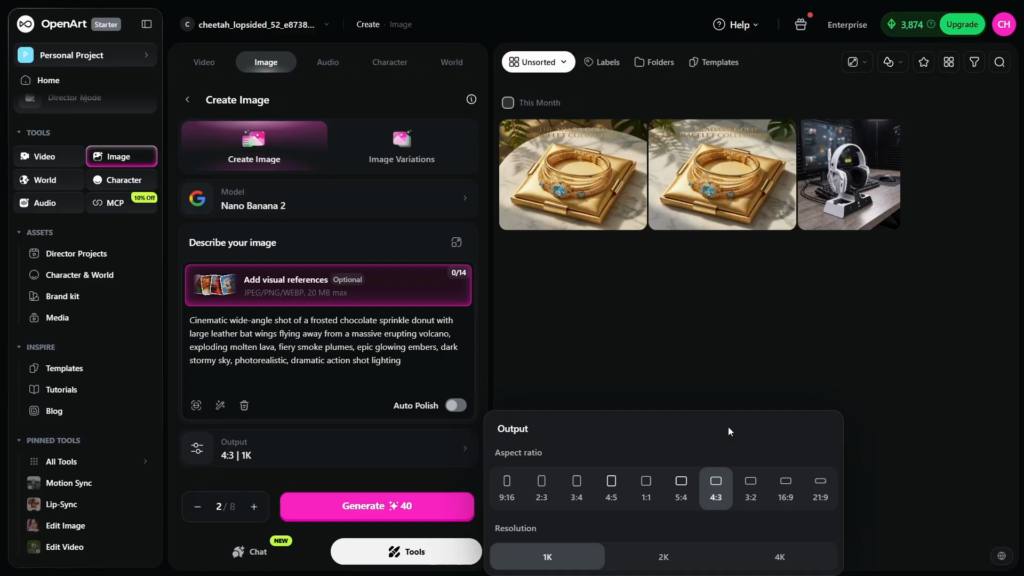
Step 5: Set the output
Choose the aspect ratio (from 9:16 for vertical video up to 21:9 widescreen), the resolution (1K, 2K or 4K) and how many images to create, up to 8 at once. Every image costs credits, so start with one or two while you’re testing a prompt.
Step 6: Generate, then upscale, vary or download
Click Generate. Open the result to upscale it, create variations, edit it or download it (top right, PNG). If it’s not right, click Recreate Image to run it again, or go back and add or remove details in the prompt.
Tips for better images
- Put the subject and the action first, then the setting, then lighting and style.
- Name the look you want: photorealistic, cinematic, watercolor, 3D render.
- Change one thing at a time between generations so you know what made the difference.
- Use Image Variations when you like a result but want alternatives.
- Upscale only the final pick, not every draft, to save credits.
OpenArt plans and credits
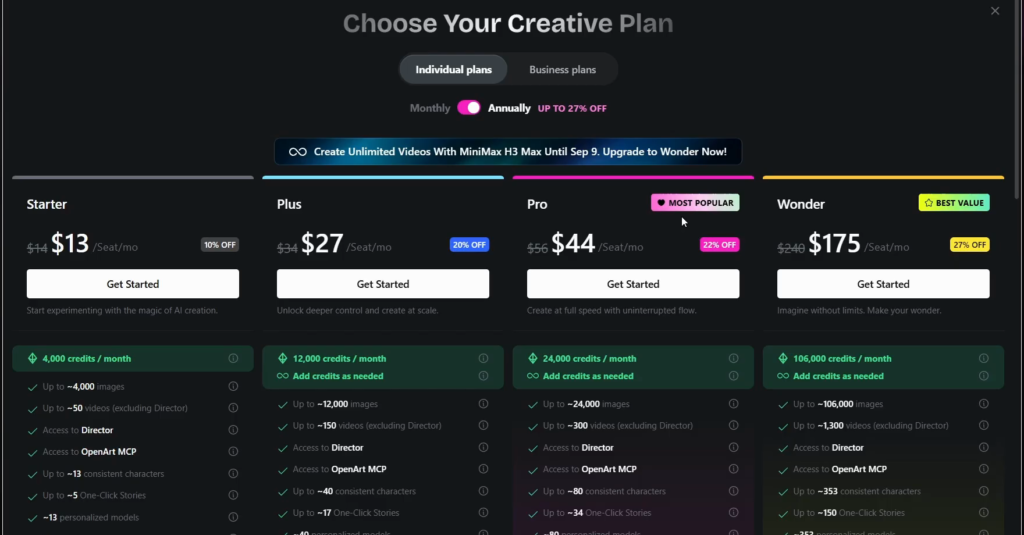
| Plan | Billed yearly | Billed monthly | Credits per month |
|---|---|---|---|
| Starter | $13/month | $14/month | 4,000 |
| Plus | $27/month | $34/month | 12,000 |
| Pro | $44/month | $56/month | 24,000 |
| Wonder | $175/month | $240/month | 106,000 |
Prices are per seat (November 2026). Code TUTORIALSTACK takes 15% off (a year on annual billing, the first month on monthly), and paid plans through our link include the free AI Prompt Vault. Not sure which plan you need? Our OpenArt review goes through each one.
My take
I’d spend the first credits on one prompt across three or four models rather than many prompts on one model. You learn quickly which model fits your style, and after that a good prompt matters more than anything else.
For volume, Plus is the plan I’d start on; Starter runs out fast once you generate several images per prompt.
Try OpenArt
15% off with code TUTORIALSTACK, plus the free AI Prompt Vault with any paid plan.
FAQ
How do I generate an image in OpenArt?
Go to Tools > Image > Create Image, pick a model, write a detailed prompt, choose the aspect ratio, resolution and number of images, and click Generate.
How many images can OpenArt generate at once?
Up to 8 per generation. Each image uses credits, so generate one or two while you test a prompt.
Which OpenArt model is best?
It depends on the style you want. OpenArt includes GPT Image 2, Google’s Nano Banana models and others; run the same prompt through a few and compare.
How do I download an image from OpenArt?
Open the image and click Download at the top right; it saves as a PNG. You can upscale it first for a larger file.
Can I edit an image I already have?
Yes. Use Image Variations, Edit Image, Expand Image or Change Background from Tools > Image.
What aspect ratios does OpenArt support?
From 9:16 vertical up to 21:9 widescreen, including square and common photo ratios, at 1K, 2K or 4K resolution.
Related next step
Deciding whether to buy? Read our OpenArt review, or see how to apply the TUTORIALSTACK code. More AI tool guides are in the AI Tools hub.